How to Save TikTok Live to MP4
You can save TikTok Live streams as MP4 by recording the live stream while it is happening. If the live has already ended and no replay is available, it may not be possible to recover it.
Add a TikTok live room once, and AutoRecordLive can monitor it, start recording when the streamer goes live, and let you review the recording online or download it as MP4 after processing when your plan and content rights allow it.
Record First, Save Later
AutoRecordLive is designed for cloud monitoring and recording while the live stream is happening. It is not a guaranteed downloader for any old TikTok Live replay.
Can You Save TikTok Live as MP4?
Yes, but the live stream usually needs to be recorded while it is happening. Unlike normal uploaded videos, live streams may not always have a public replay available after they end.
There are two common ways to save TikTok Live as MP4:
- Manually screen record the live stream on your phone or computer
- Use a cloud recorder like AutoRecordLive to record the stream automatically
Why You Should Record Before the Live Ends
If a TikTok Live has already ended, you may not always be able to download it. Some creators do not publish replays, and some live sessions are temporary.
That is why the safest way to save a TikTok Live is to record it while it is live. AutoRecordLive is built for this workflow: add the live room in advance, let the system monitor it, and keep the recording after the live ends.
If you cannot stay online during the live, read our guide on how to record TikTok Live when you’re offline.Method 1: Save TikTok Live with Manual Screen Recording
You can use your phone’s built-in screen recorder or desktop recording software to save a TikTok Live manually.
- You must be online when the live starts
- Your phone or computer must stay awake
- Long streams may consume a lot of local storage
- Notifications may appear in the recording
- The recording can fail if the app crashes or the network drops
- You may need to manually export or convert the file afterward
Method 2: Save TikTok Live to MP4 with AutoRecordLive
AutoRecordLive records TikTok Live streams in the cloud. Instead of keeping your own device online, you add the TikTok live room and let the system monitor it.
With AutoRecordLive, you can:
- Add a TikTok live room once
- Monitor the live room automatically
- Record the stream in the cloud
- Review the recording after the live ends
- Download the recording as MP4 when available
- Use the recording for editing, review, archiving, or AI summaries
How to Save TikTok Live to MP4 with AutoRecordLive
Step 1: Create an AutoRecordLive account
Create an account so your live rooms and recordings can be saved in your dashboard.
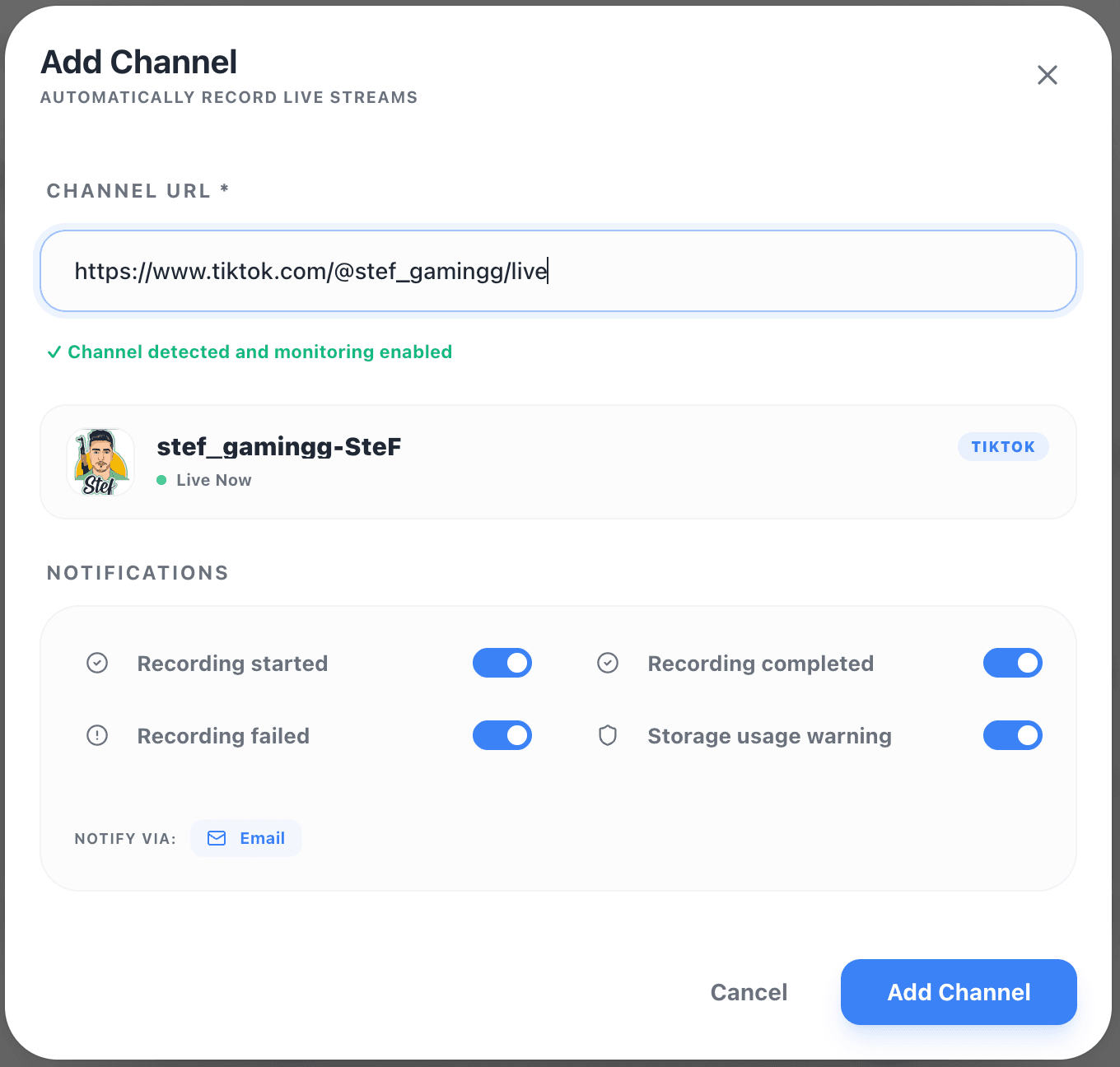
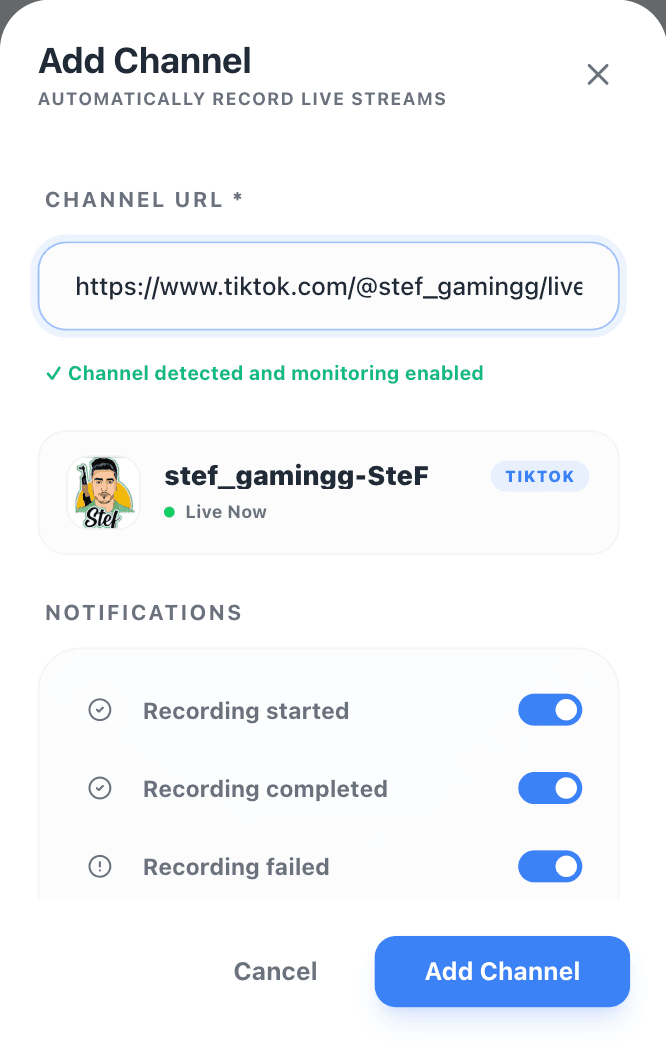
Step 2: Add the TikTok live room
Paste the TikTok live room URL or creator live page into AutoRecordLive.
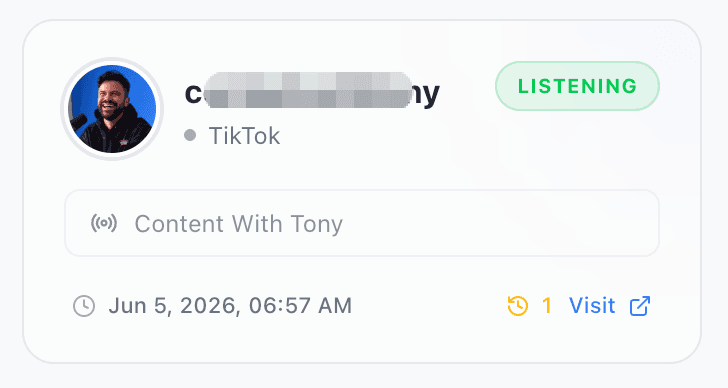
Step 3: Let AutoRecordLive monitor and record the stream
AutoRecordLive monitors the live room in the cloud. When the streamer goes live, the recording starts automatically.
Step 4: Wait for processing after the live ends
After the live stream ends, the recording may need time to process before it is ready for review or download.
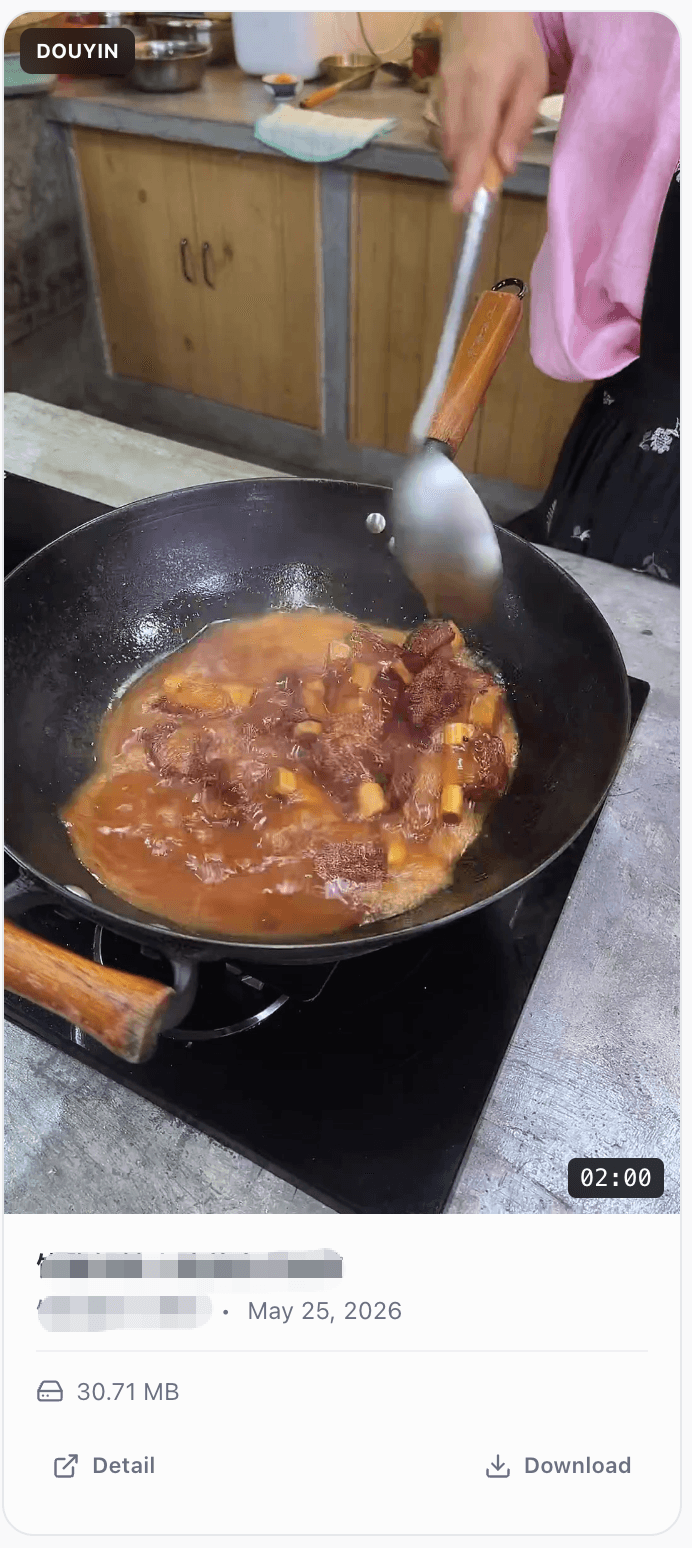
Step 5: Download the recording as MP4
When the recording is ready, you can open it in your dashboard, watch it online, and download it as an MP4 file when your plan and content rights allow it.
TikTok Live MP4 vs Screen Recording File
| Feature | Manual Screen Recording | AutoRecordLive |
|---|---|---|
| Saves TikTok Live as video | Yes | Yes |
| Requires device online | Yes | No, after setup |
| Starts automatically | No | Yes |
| Miss unexpected live streams | Easy to miss | Automatically monitored |
| Best for long live sessions | Risk of failure | Designed for long streams |
| MP4 download | Manual export or conversion | Available after processing |
| Good for editing later | Depends on local workflow | Yes |
What Can You Do with a TikTok Live MP4 Recording?
Once you have a TikTok Live recording as MP4, you can use it for:
- Watching the live stream later
- Editing highlights or short clips
- Creating YouTube Shorts, TikTok clips, or social posts
- Reviewing product demos or live selling sessions
- Archiving creator content
- Sharing with a team
- Generating AI summaries or notes
Can You Download TikTok Live Replay After It Ends?
Not always. If the creator or platform does not provide a replay, you may not be able to download the live stream after it ends.
AutoRecordLive is designed to help you record the live stream while it is happening, so you have a processed recording available afterward for review or MP4 download when your plan and content rights allow it.
Best Practices for Saving TikTok Live Recordings
- Add the live room before the stream starts
- Make sure monitoring is active
- Check your recording time and plan limits
- Use a stable creator live room URL when possible
- Review the recording after processing
- Download important recordings before your retention period ends
FAQ
Can I save TikTok Live to MP4?
Yes. You can save TikTok Live as MP4 by recording the stream while it is live. AutoRecordLive can monitor and record TikTok Live streams in the cloud.
Can I download a TikTok Live after it ends?
Not always. If no replay is available, the live stream may not be recoverable after it ends. The safer approach is to record it while it is happening.
Does AutoRecordLive download old TikTok Live replays?
No. AutoRecordLive is designed for cloud recording and monitoring. It records live streams when they are available, rather than acting as a guaranteed downloader for old live replays.
Do I need to keep my phone on to save TikTok Live?
No. After you add the live room, AutoRecordLive can monitor and record in the cloud.
Can I use the MP4 recording for editing?
Yes. MP4 recordings are useful for editing highlights, reviewing live sessions, creating clips, or archiving content.
How long does processing take after the live ends?
Processing time may vary depending on stream length, file size, and system load.
Is it legal to save TikTok Live recordings?
You should only record streams you own, are authorized to record, or are otherwise permitted to save under applicable laws and platform rules.
Save TikTok Live Streams as MP4
Add a TikTok live room once. AutoRecordLive will monitor it in the cloud, record the stream when it goes live, and let you review or download the recording as MP4 after processing.