Chrome extension
AutoRecordLive Chrome Extension — Add TikTok Streamers in One Click
Recognize a supported TikTok or Douyin creator page, then open AutoRecordLive with the channel ready to review. You stay in control of every addition.
The extension recognizes pages locally. Cloud listening only starts after you confirm the streamer in AutoRecordLive.
Install from the Chrome Web Store
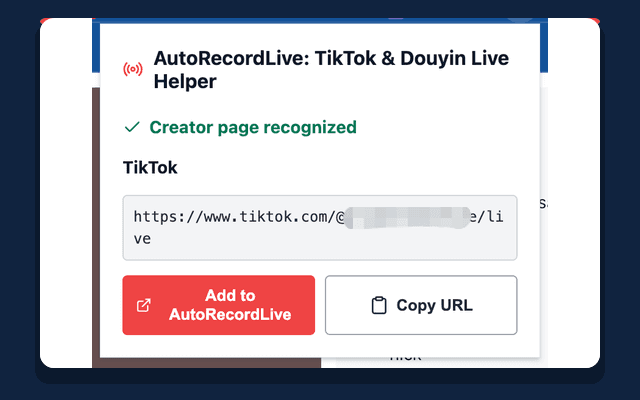
What the extension does
This TikTok live recorder Chrome extension helps you move from a supported creator page to a prepared AutoRecordLive workflow without copying a URL by hand. It recognizes supported TikTok and Douyin pages, normalizes the channel URL locally, and opens AutoRecordLive only when you choose to continue. If you are looking for a TikTok live recording extension, a Chrome extension to record TikTok Live, or a Douyin live recorder extension, AutoRecordLive keeps the recording work in the cloud after your confirmation.
It is not a browser screen recorder and does not download or capture media streams. Adding a page still requires your confirmation in AutoRecordLive.
How it works
Open a supported creator page
Visit a supported TikTok or Douyin creator page and open the AutoRecordLive extension from your browser toolbar.
Review the recognized channel
The extension shows the normalized channel URL. You can copy it or choose Add to AutoRecordLive.
Confirm cloud listening
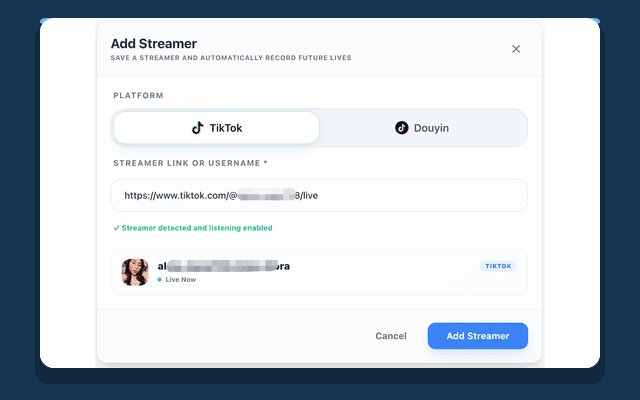
AutoRecordLive pre-fills the candidate channel. After you confirm it, your subscription enables cloud listening for future live sessions.
From page recognition to a confirmed streamer
The extension keeps the handoff short while the final decision stays with you.
Why the extension needs these permissions
Each permission is limited to the extension's page-recognition and user-requested actions.
TikTok and Douyin page access
Access to www.tiktok.com, www.douyin.com, and live.douyin.com is used only to recognize supported pages and construct a normalized creator URL.
Current tab access
activeTab is used only when you interact with the extension on the current tab, so it can read the supported page state you asked it to inspect.
Copy URL
clipboardWrite is used only after you click Copy URL to place the normalized channel URL on your clipboard.
Privacy by design
The extension does not read AutoRecordLive cookies or tokens, capture media stream URLs, execute remote code, or upload the current page URL or page content before you take an action.
Read the Privacy PolicyHow AutoRecordLive keeps listening in the cloud
Once you confirm the channel, AutoRecordLive takes over the ongoing work. You do not need to keep the creator page, the extension popup, or your computer open.
- Your confirmed subscription enables the channel for cloud monitoring.
- AutoRecordLive Listener checks the channel status on a schedule.
- When the live session begins, the existing cloud recording workflow starts the recording.
For the full cloud recording workflow, see TikTok Live Recorder.
Ready when you find the next live
Install the extension from the Chrome Web Store, then add only the channels you are authorized to monitor and record.